Updates

Follow new updates and improvements to Rotor.

Option Quoting, Quote Deposits, Smarter Quote Automations & More
Quoting got a major upgrade. The new quote builder is now live for everyone, Option Quoting is out of beta, and your quote automations now react to what your customer actually does with the quote. Here's everything that's new since our last update.

Option Quoting - OUT OF BETA

Put up to four options on one quote, like Basic, Standard and Premium. Your customer compares them side by side in the client portal, picks one, and accepts.

You can also mark individual line items as optional, so customers can keep or remove add-ons before they accept.

What this gives you:

  • Bigger tickets by letting customers choose to upgrade

  • Fewer back-and-forth texts about "what would it cost if…"

  • One quote instead of three

Once accepted, you'll see which option was chosen and can convert it straight into a job or service plan.

Availability: Option Quoting is included on the Pro plan. Reach out through in-app support and we'll turn it on for your account.

Learn more about Option Quoting:
https://helpcenter.getrotor.com/en/articles/0112612-option-quoting

New Quote Builder + Quote Deposits - LIVE FOR EVERYONE

The new quote builder is now on for every account, including deposits on quotes. Set a percentage or fixed amount, and your customer pays it in the portal when they approve. Rotor creates the deposit invoice, takes payment, and credits it to the first job when you convert.

Customers can also Request Changes or Decline right from the portal, and you'll see their notes on the quote.

Note: Stripe must be connected to collect deposits.

Learn more about Quote Deposits:
https://helpcenter.getrotor.com/en/articles/1942872-collect-a-deposit-on-a-quote

Quote Status Automations

Workflows now have three new quote triggers: Quote Approved, Quote Changes Requested and Quote Declined. Use them to move a contact through your pipeline and stop follow-up texts the moment a customer responds.

We've also updated the default Quoted pipeline and its automations:

  • Three new pipeline stages for approved, changes requested and declined quotes

  • Updated default automations that use the new triggers

  • No more follow-up texts going to customers who already said yes

If you were still using our default Quoted pipeline, we've applied these updates for you. If you customized yours, nothing was changed — reach out and we're happy to help you set it up.

Learn more about Workflows & Automations:
https://helpcenter.getrotor.com/en/articles/9225600-workflows-and-automations

Schedule Improvements on Web

  • Group view now shows crew and technician initials so it's easier to read at a glance

  • Drag and drop works better when moving combined visits

  • Crews with no technicians are hidden from the scheduling wizard

  • Fixed technicians showing as unavailable when they were free

Property Previews & Cover Photos

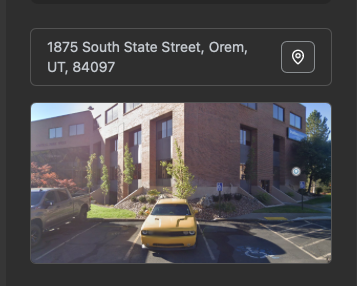
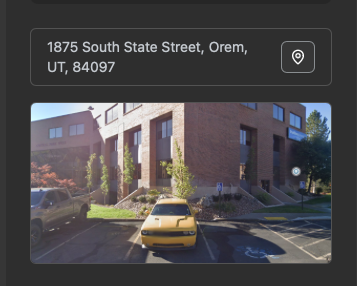
The street-level preview of a property has been replaced with an overhead map view of the location wherever it appeared on leads and customers.
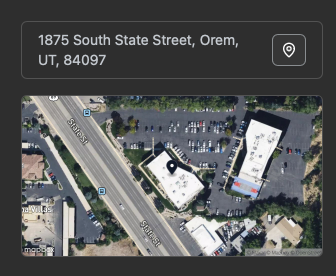
Want a real photo of the property instead? Set any photo on the lead or customer as the cover:

  1. Go to Attachments → Photos on the lead or customer

  2. Hover over the photo and press the star

  3. That photo now replaces the map preview
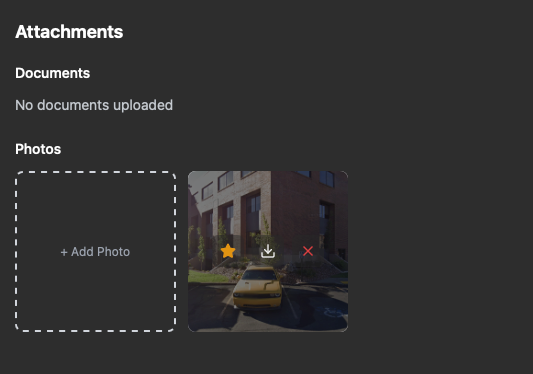
This works in the mobile app too.

Reorder Pipelines

You can now drag your pipelines into the order you want, so the ones you use most stay at the top.

Team 2FA Enforcement

Admins can now require two-factor authentication for their team from the Team settings page, adding an extra layer of security to your account.

Unique, Editable Invoice Numbers

New invoice numbers are now randomly generated and unique, so customers no longer see "Invoice 0001". You can also edit an invoice number at any time, even after it has been sent.

Rotor + Claude

Rotor is now listed in Claude's connector directory, so connecting your Rotor account to Claude takes just a few clicks. Rotor AI can now also read timesheets (GPS data excluded).

Fixes & Polish

  • Reminder emails no longer send after a job is cancelled

  • Calling fixes: calls hanging up after one ring, recorded calls missing from conversations, and calls now follow a contact when a lead converts to a customer

  • Quote tax totals now add up correctly

  • Canadian bank payment limit fixed

  • Team invites now deliver reliably

  • New leads now show up on mobile right away

Coming Soon!

More Option Quoting improvements are on the way:

  • No option pre-selected: the portal won't select an option by default unless you've marked one as recommended

  • Photos per option: add photos to the option itself, separate from line item photos

  • Notes per option: each option can have its own notes

  • Advance to agreement per option: choose which options advance to an agreement

  • Simpler layout: a cleaner, more intuitive quote builder

  • Better mobile preview: an improved "View quote as Client" screen in the mobile app

Review the Latest Updates

Log in to Rotor and review these updates and articles with your team. Reach out to us directly via our in-app support with any questions and we are happy to coordinate.

Keep in touch!

If you're curious about Rotor or would like to learn more, we'd love to meet you! We feel super blessed to work alongside such a great industry and love helping our companies succeed.
👉 BOOK TIME WITH US: https://calendly.com/carson-getrotor/rotor-demo

Follow the journey on Instagram @get_rotor
Have feedback on any of these? We want to hear it. Reach out through the Discord community, the in-app chat, or email us at support@getrotor.com.
- The Rotor Team
NewImproved

Payroll Updates, Klarna, Number Nicknames, Custom Frequencies and More

We’ve made SEVEN major updates to Rotor designed to give your customers more ways to pay and get help, and to give your team more control over scheduling, automations and payroll.

Klarna Payments

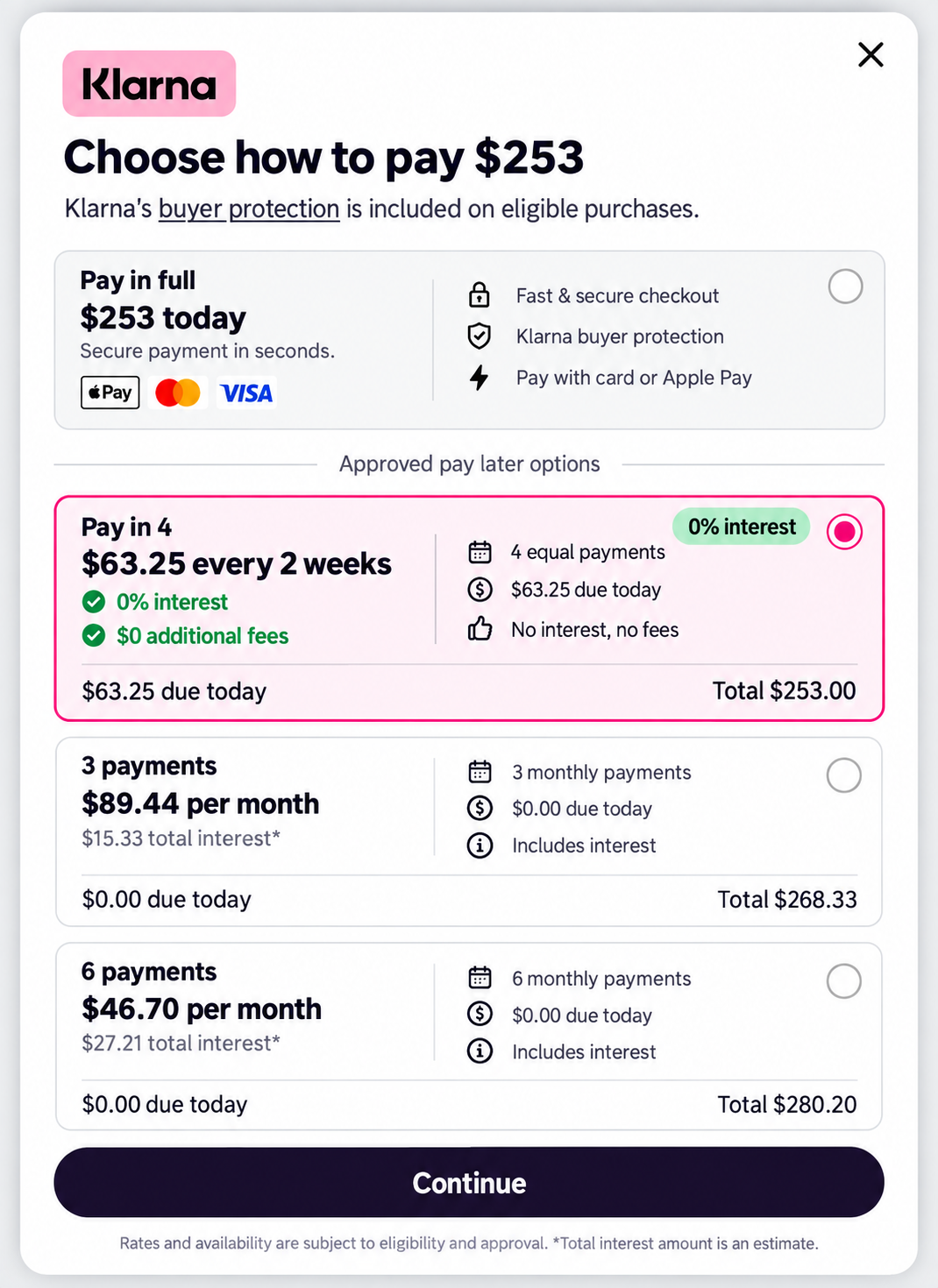
Customers can now split an invoice into Klarna installments at checkout. Klarna appears alongside Card and Google Pay in the client portal, and eligible invoices can be paid in 4 interest-free installments every 2 weeks.

Klarna transactions are charged at 6.5% + $0.30 per transaction.

What this gives you:

  • Another payment option at checkout for larger invoices

  • Customers pay over time while you are paid up front

  • Available across the client portal, web and mobile apps

To turn it on: go to Settings → Client Portal, enable Accept Klarna Payments, then scroll to the bottom of the page and press Save. The toggle will not take effect until you save.

Learn more about Klarna: https://helpcenter.getrotor.com/en/help/articles/2258913-klarna-payments


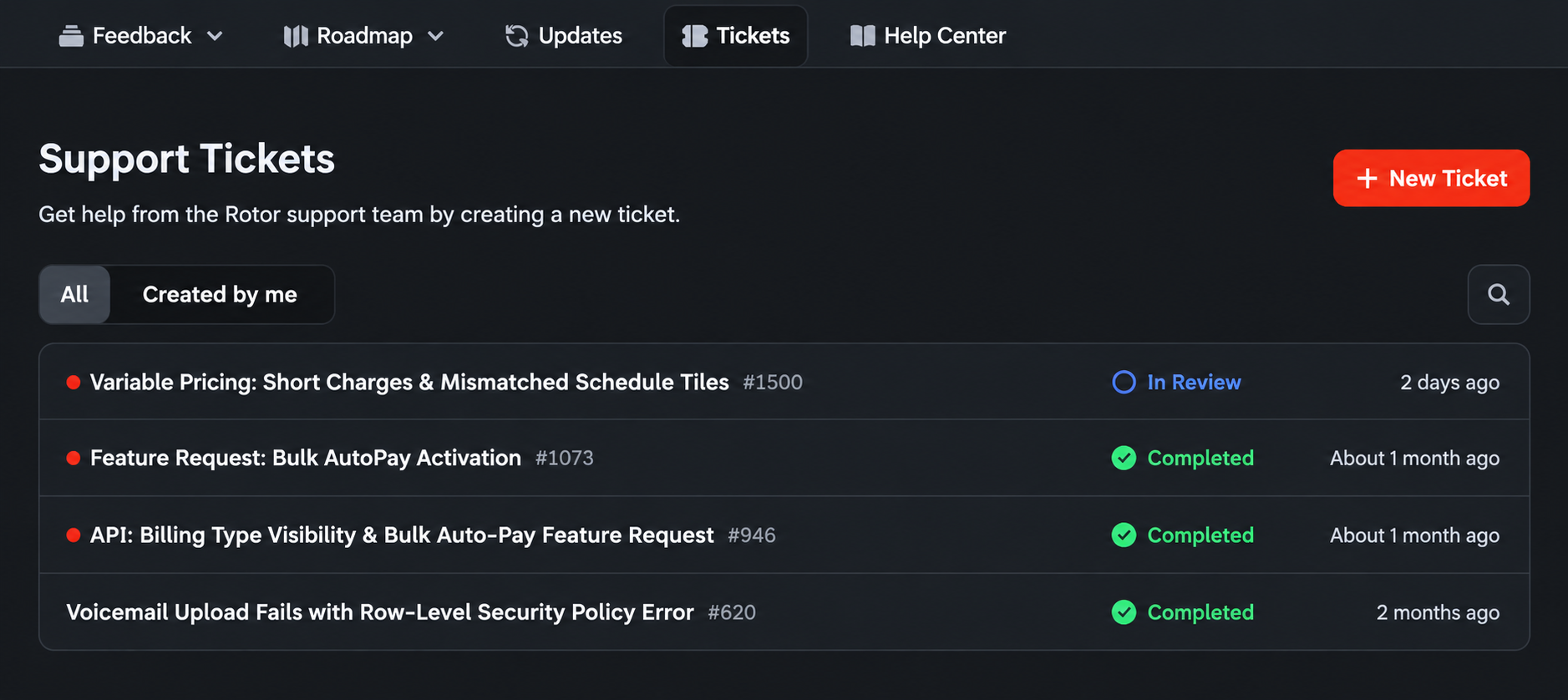
Support Ticket Portal

Support tickets now have their own page in the portal on web. If you would rather not go through the chat bot, you can go straight to the Tickets tab and submit one with New Ticket.

The ticket portal makes it easier to:

  • Submit a request directly without using the chat bot

  • See outstanding and resolved tickets in one place

  • Check the status of anything still open

  • Reference past tickets and what was completed


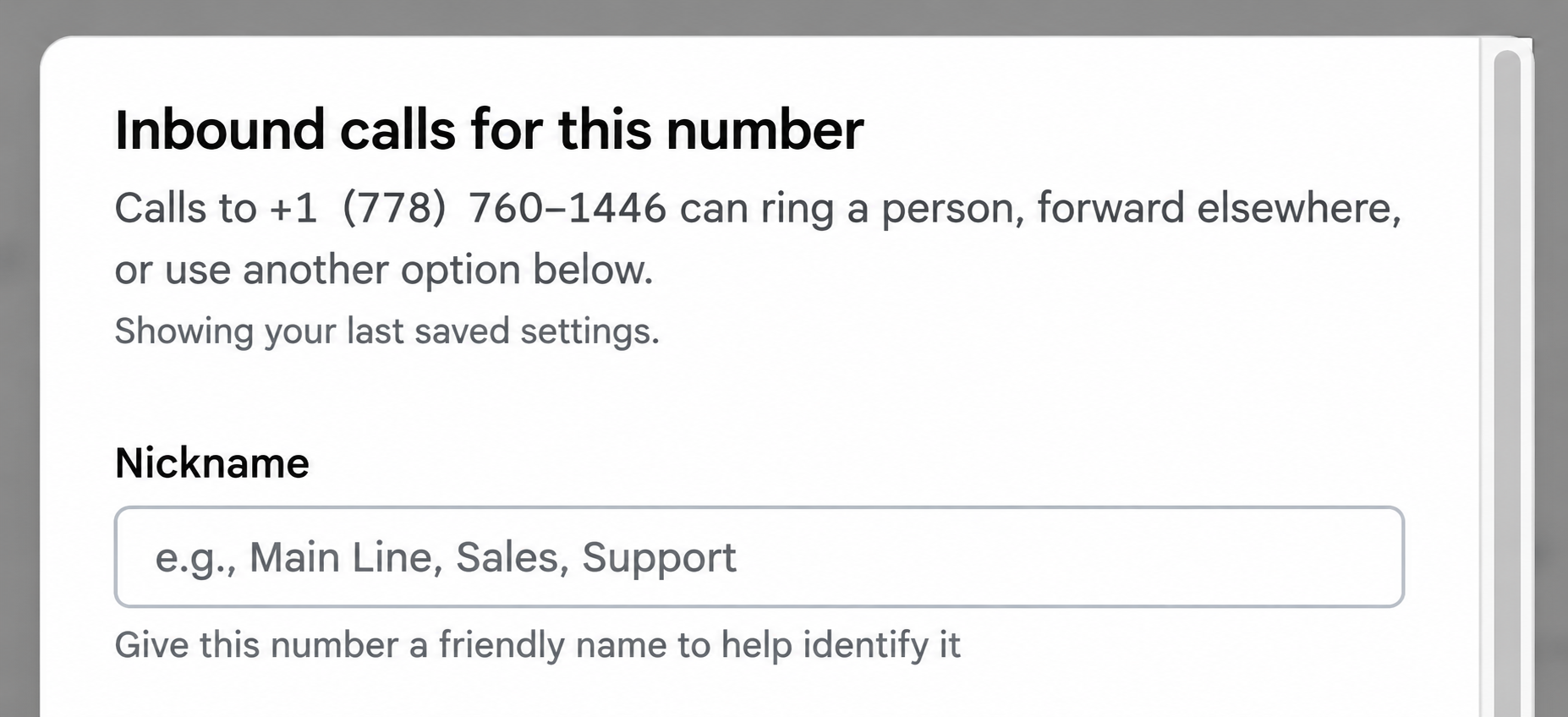
Phone Number Nicknames

If you manage more than one phone number, you can now give each one a friendly nickname so your team can tell them apart at a glance. Nicknames show up in the Inbox alongside the number.

Nicknames help you:

  • Label numbers by purpose, such as Main Line, Sales or Support

  • Identify which number a call or message came in on

  • Manage multiple numbers without memorizing them

To set one: go to Settings → Engagement, select the number, and enter a Nickname.


Checklist Photos on the Customer

Every photo your team adds to a job checklist now shows up on that customer’s record, so you have a running visual history of the work without digging through individual jobs.

Each photo shows:

  • Who added it

  • A button that takes you straight to the job it came from

This makes it easier to answer questions about past visits, verify work that was completed, and see how a property has changed over time.

We also fixed a bug relating to technicians still being able to complete a job when the job checklist was forced to be completed first.

Learn more about Job Checklists:

https://helpcenter.getrotor.com/en/articles/4845015-job-checklists


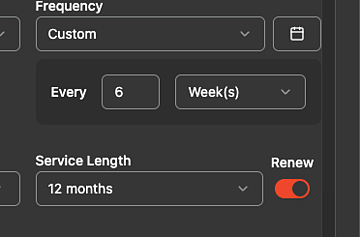
Custom Frequencies - LIVE ON WEB

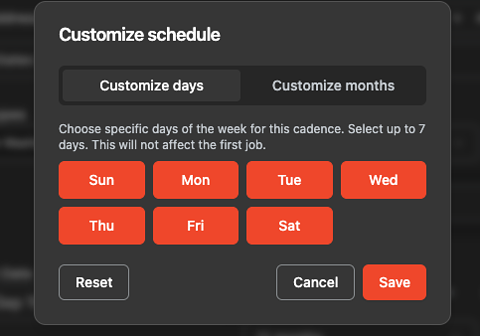
You can now set a custom cadence on recurring work on web instead of picking from the preset list. Enter a number in the Every field and choose Day(s), Week(s) or Month(s) — for example, every 6 weeks.

On daily cadences, click the calendar icon next to the frequency to open Customize schedule and choose which days of the week the plan runs. You can select up to 7 days. Day selection does not affect the first job — it applies to the recurring jobs that follow.

These changes will be live on mobile as well with the next App update.

Learn more about Service Plans:

https://helpcenter.getrotor.com/en/articles/3625554-service-plans


Remove from Pipeline

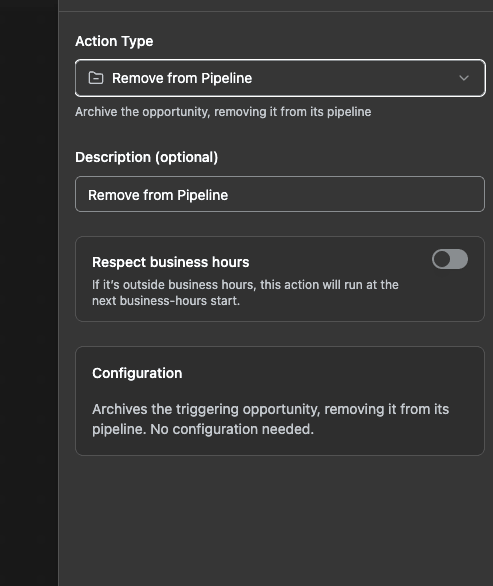
There is a new automation action: Remove from Pipeline. It archives the triggering opportunity and takes it out of its pipeline, with no configuration needed. It is only available when the workflow trigger is an opportunity.

Remove from Pipeline action settings

Learn more about Workflows & Automations:

https://helpcenter.getrotor.com/en/articles/9225600-workflows-and-automations


Payroll Updates

Four changes to how payroll calculates and displays pay.

1. Multi-tech jobs no longer split before commission. When more than one technician is on a job, the job amount is no longer divided between them before the commission rate is applied. Each technician earns their rate on the full job amount.

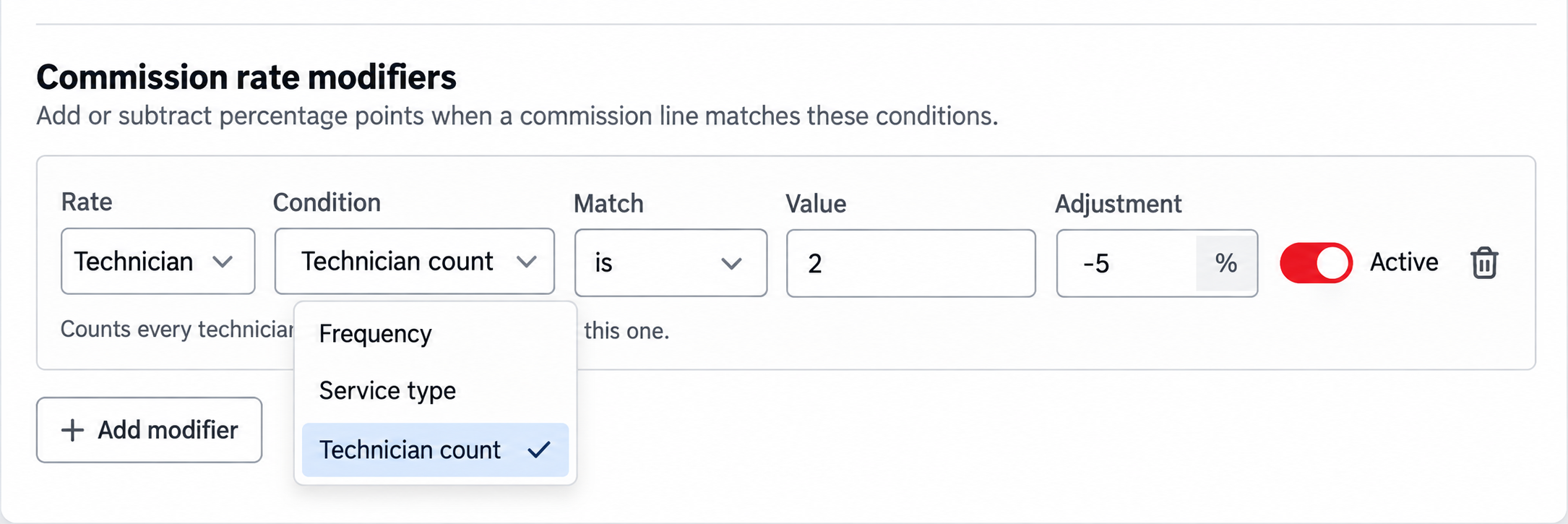
2. New rate modifier for shared jobs. There is now a Technician count condition on commission rate modifiers, so you can add or subtract percentage points based on how many techs share the job.

3. Tips are payable on payroll. Tips now appear as their own payable rows and can be paid out alongside commission.

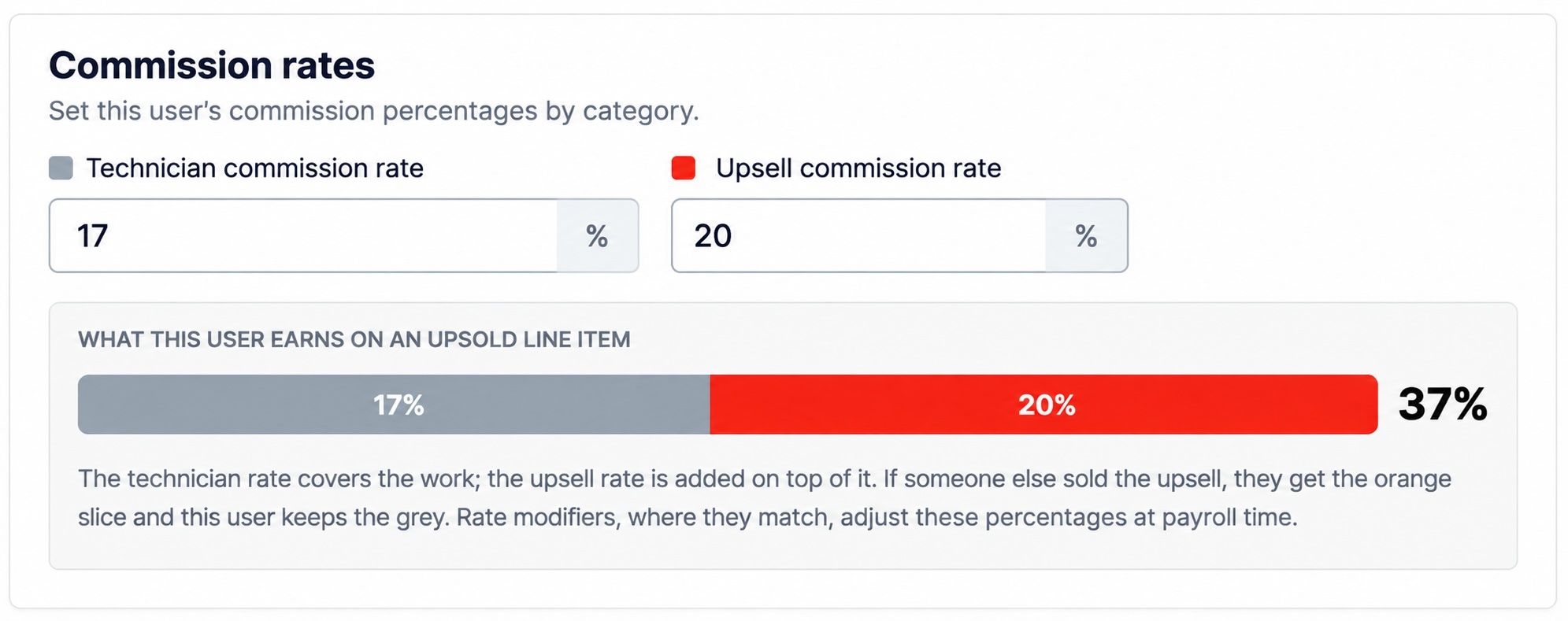
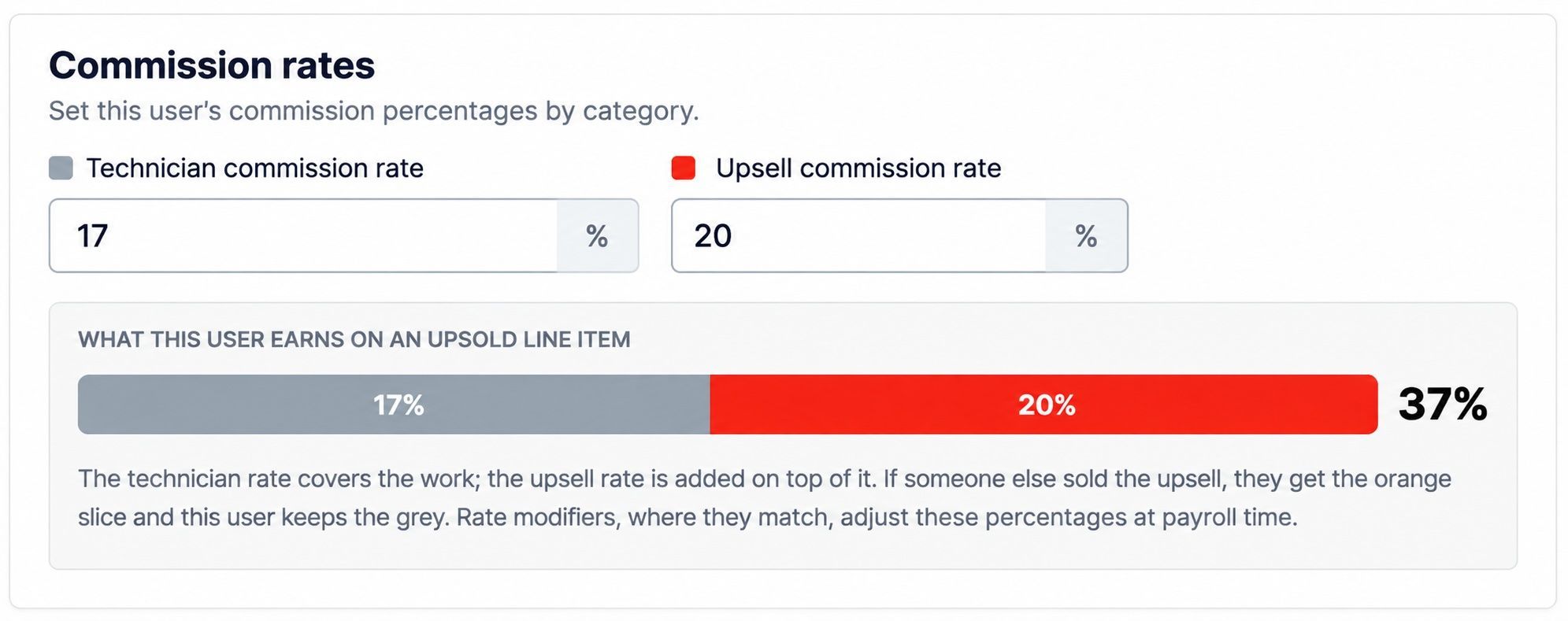
4. Upsell rate clarification on Rate Settings. Rate Settings now shows a breakdown of what a user earns on an upsold line item. The technician rate covers the work and the upsell rate is added on top of it. If someone else sold the upsell, that person earns the upsell portion and this user keeps the technician portion.

Learn more about Payroll:

https://helpcenter.getrotor.com/en/articles/4974486-payroll


Review the Latest Updates

Log in to Rotor and review these updates and articles with your team. Reach out to us directly via our in-app support with any questions and we are happy to coordinate.

Keep in touch!

If you’re curious about Rotor or would like to learn more, we’d love to meet you! We feel super blessed to work alongside such a great industry and love helping our companies succeed.

👉 BOOK TIME WITH US:  https://calendly.com/carson-getrotor/rotor-demo


Follow the journey on Instagram @get_rotor

Have feedback on any of these? We want to hear it. Reach out through the Discord community, the in-app chat, or email us at support@getrotor.com.

- The Rotor Team

NewImproved

Scheduling Updates - Jul 25 2026

Schedule

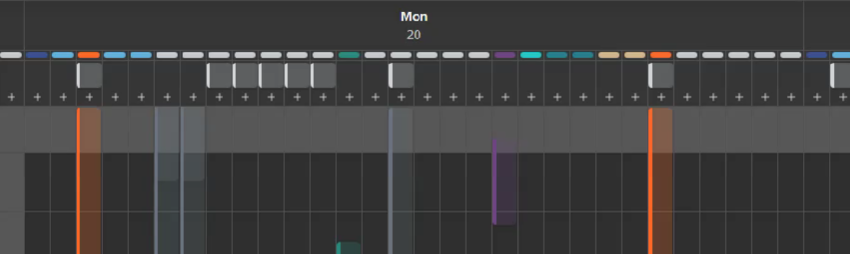
  • Week view group by crews or individuals option

  • View Salesman on the schedule to manage tasks

  • View technicians that are not on a crew, or toggle to individual mode to break apart crews on the view

Scheduling & Job attribution

  • Customize what technicians are assigned to a visit while not affecting crew assignments at all. This will help with reliability of which technicians did what jobs

  • No more job assigned to field. This was removed because it lives on the visit level, modify a visit to change who is attributed the job. It won’t mess up crew assignments anymore

Crew Updates

  • Rearrange the order of crews in schedule settings

  • Change visibility of crews on salesman so they can only view certain crews you allow them to ( on the new user settings page)

  • Technicians do not need to be on a crew anymore, you can schedule them all by themself. While crews remain helpful if you want mutliple technicians to work together regularly

  • Crew-managed availability option: A crew typically joins together availability of all of it’s technicians to show what is available on the schedule. Now if you want you can set it at the crew level. Most helpful for companies who want to strictly manage certain time blocks that can be scheduled on. You can even have an empty crew with availability and then manually assign whoever you need to.

User Settings

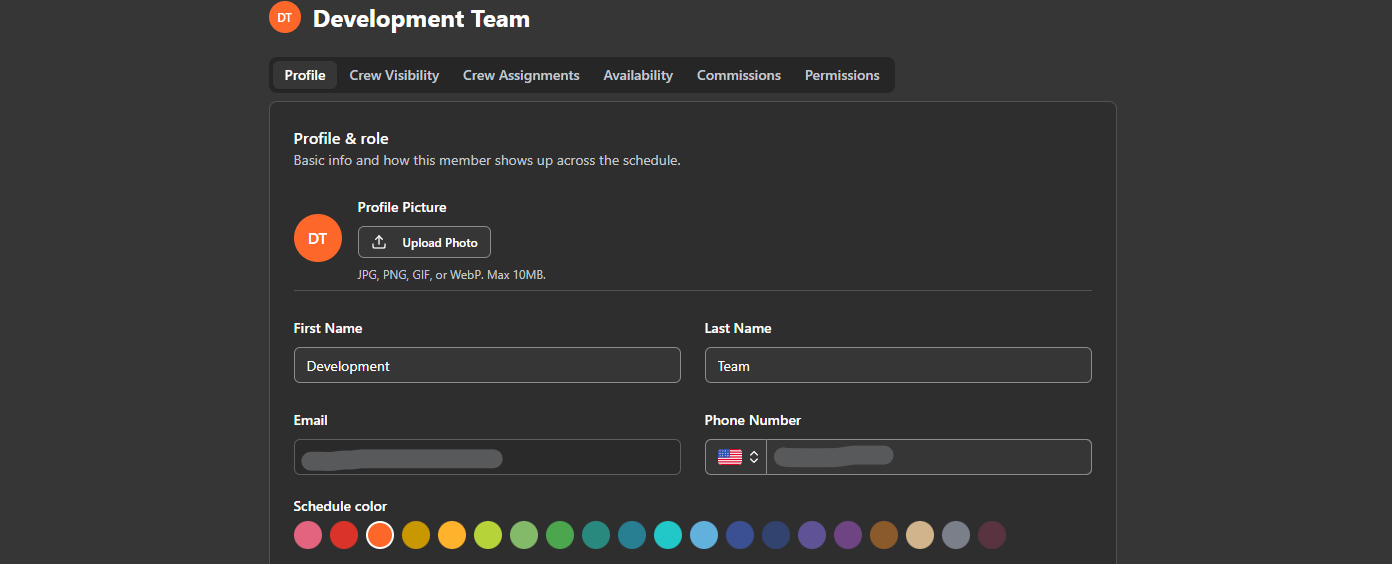
  • Added a user settings page for admins to manage all the details of a user in one place. Go to team settings and click on a user’s row or the button on the end

Other Updates

  • Unassigned sold by service plan filter

  • Job Completed messaging automation

  • Customize manual payment method options in settings → customization

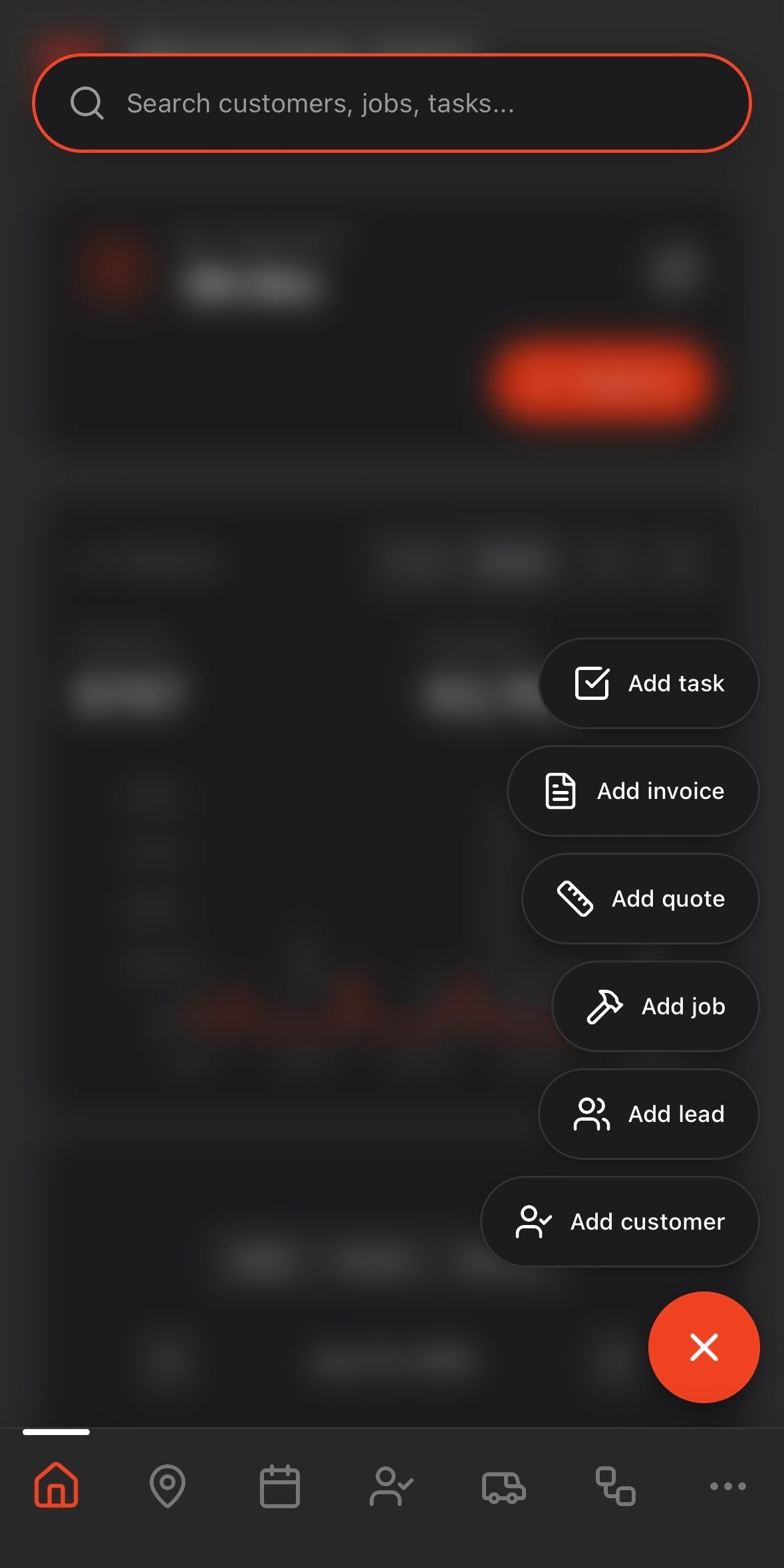
  • Mobile: Global add and search button on home page


Keep in touch!

If you’re curious about Rotor or would like to learn more, we’d love to meet you!   We feel super blessed to work alongside such a great industry and love helping our companies succeed.  

👉 BOOK TIME WITH A CO-FOUNDER:  https://calendly.com/noah-getrotor/30min


Follow the journey on Instagram @get_rotor

Have feedback on any of these? We want to hear it. Reach out through the Discord community, the in-app chat, or email us at support@getrotor.com.

Improved